Edit a Test Case
- The Edit Test Case page enables users to modify an existing test case by updating its details, editing test steps and actions, configuring execution settings, and validating changes before execution.
- To edit a test case, first select the desired test case from the "Create New Test Case" page. Alternatively, a specific test case can be selected from the "Test Case Search" page for editing.
Why it matters / Use Cases:
- Keeps test cases up to date by allowing existing steps and actions to be modified when application requirements change.
- Improves test accuracy by correcting outdated or incorrect steps and actions.
- Simplifies test maintenance by allowing existing test cases to be updated instead of creating new ones from the beginning.
- Improves test coverage by allowing new steps and actions to be added for newly introduced scenarios.
- Supports debugging by allowing individual actions or steps to be modified and tested before executing the complete test case.
- Supports test reuse by allowing existing test cases and reusable steps to be updated when necessary.
Prerequisites
- Access to ZeuZ Server with permissions for Testing → Test Case → Create / Edit.
- An existing test case must be available in the project.
- The required test steps and actions should already be available if they need to be modified or reused.
- The test case must be accessible from the Test Case Search page or the relevant test case list.
Features
- After creating a test case, the page redirects to the Test Case Edit page.
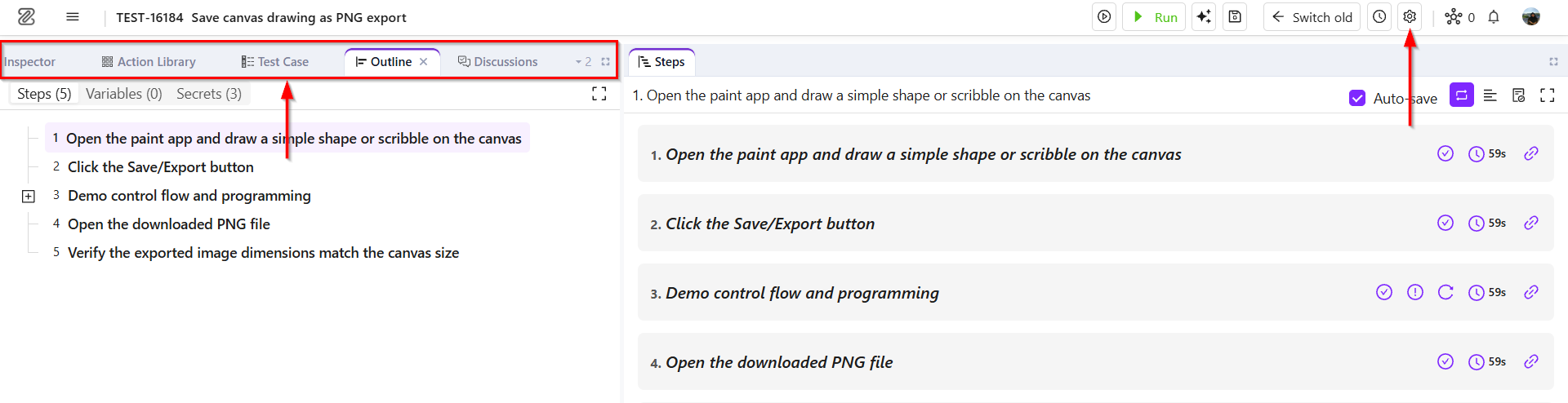
- The navbar at the top contains the following options:
- Test Case ID
- Test Case Title
- Run on Deploy
- Run on Debug
- zAI
- Save test case version
- Switch Old
- Worklog
- Layout Settings

Layout Settings
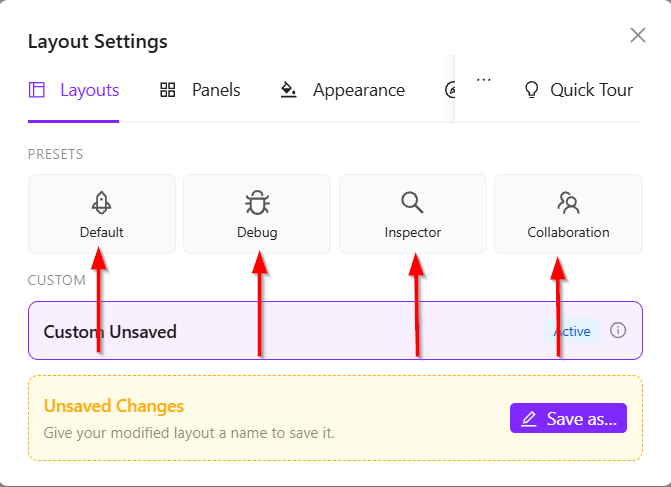
- Click the Settings option. The "Layout Settings" window will then appear.
- Layouts are predefined configurations, such as Default, Debug, Inspector, and Collaboration, that determine how the interface is arranged, including the position and visibility of different panels.
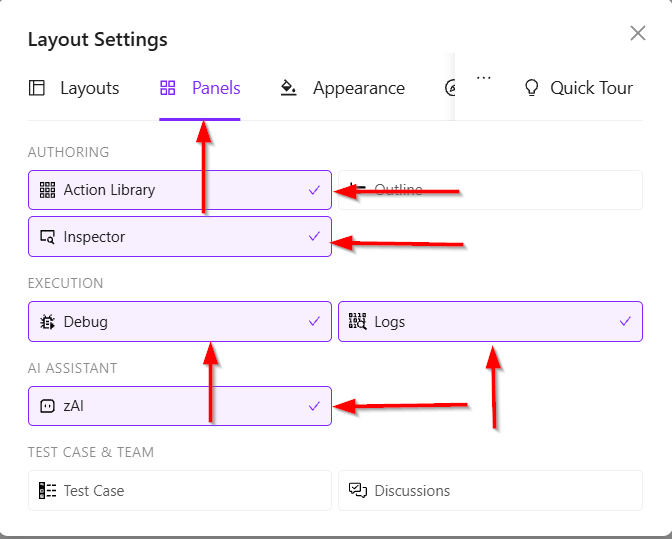
- Panels allow users to control which panels are displayed in the interface. Clicking a panel option enables or disables its visibility.
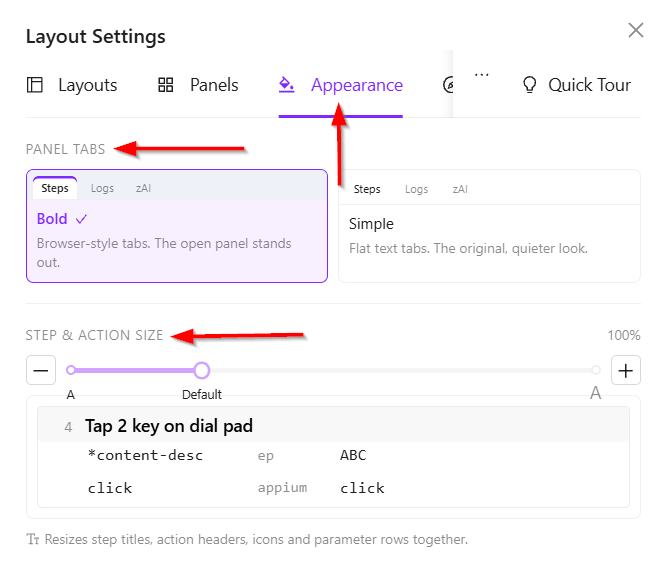
- Appearance allows users to customize the "Panel Tab" style and adjust the size of "Steps and Actions" according to their preferences.
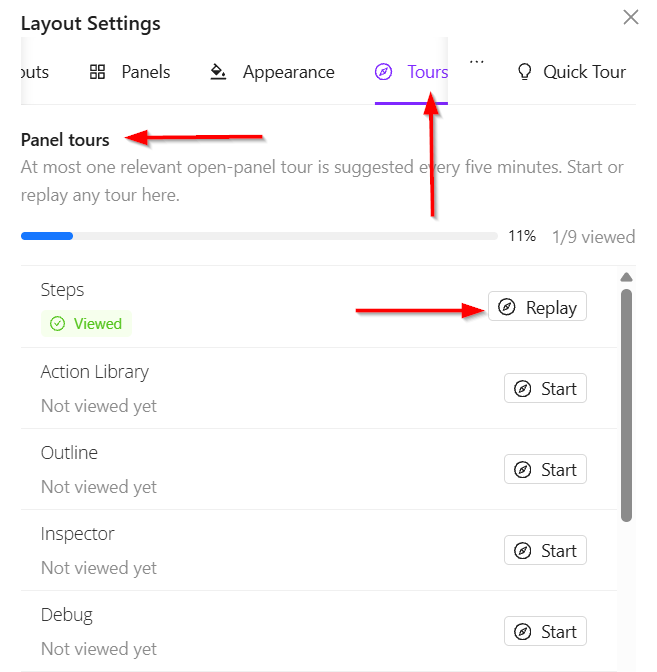
- Tours provide a guided walkthrough for each panel. Each panel has a specific tour that explains its features and functionality. Clicking "Start" begins the selected tour.
Steps Panel
-
Step Count and Step Controls: The page displays the total number of steps in the test case along with various controls for managing the steps. It includes the following points:
- Verify Point: It defines what needs to be verified to determine whether the test step has produced the expected result.
- Verify Point No: It refers to the number assigned to a specific verification point within that step.
- Continue Point: It indicates a point where the test execution should continue to the next step or action after the current step is completed.
- Continue Point No: It refers to the number assigned to a specific continuation point within the step.
- Run on Fail: It allows a test step or action to be executed again automatically if its initial execution fails.
- Run on Fail No: It specifies the number of retry attempts allowed when a test step or action fails.
- Always Run: It means that the step or action will always be executed, regardless of whether a previous step has passed or failed.
- Always Run No: It refers to the number of times the step or action is configured to run regardless of the result of the preceding steps.
- Execution Time: It indicates the duration required to complete a specific test case step during execution.
- Linked Test Cases: It refers to other test cases that are associated with the current step or test case.
- Lock Step: It prevents a test case step from being modified, helping protect important or finalized steps from accidental changes.
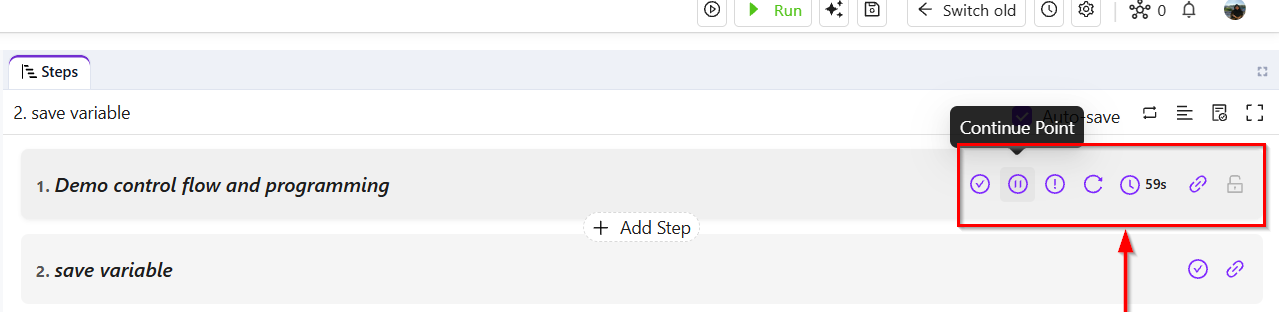
Steps contain the following additional points
- Auto-save: The Auto-Save option can be enabled or disabled according to the user's preference.
- Toggle Step Controls Mode: It allows users to show or hide the controls used to manage test case steps.
- Toggle Description: It refers to an option that allows users to show or hide the step's description.
- Toggle Expected: It allows users to show or hide the Expected Result field of a test case step.
- Expand / Collapse All Steps: It allows users to display or hide the details of all test case steps at once.

How to add a Step
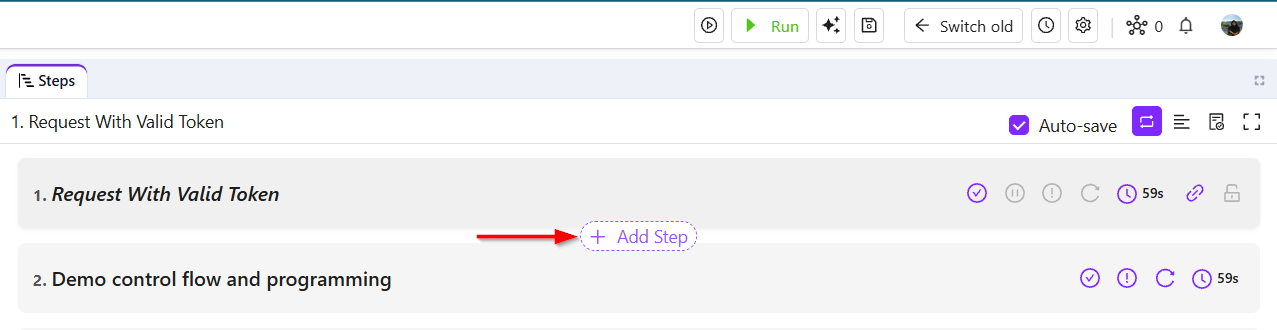
- First, click the + Add Step button for the specific step.
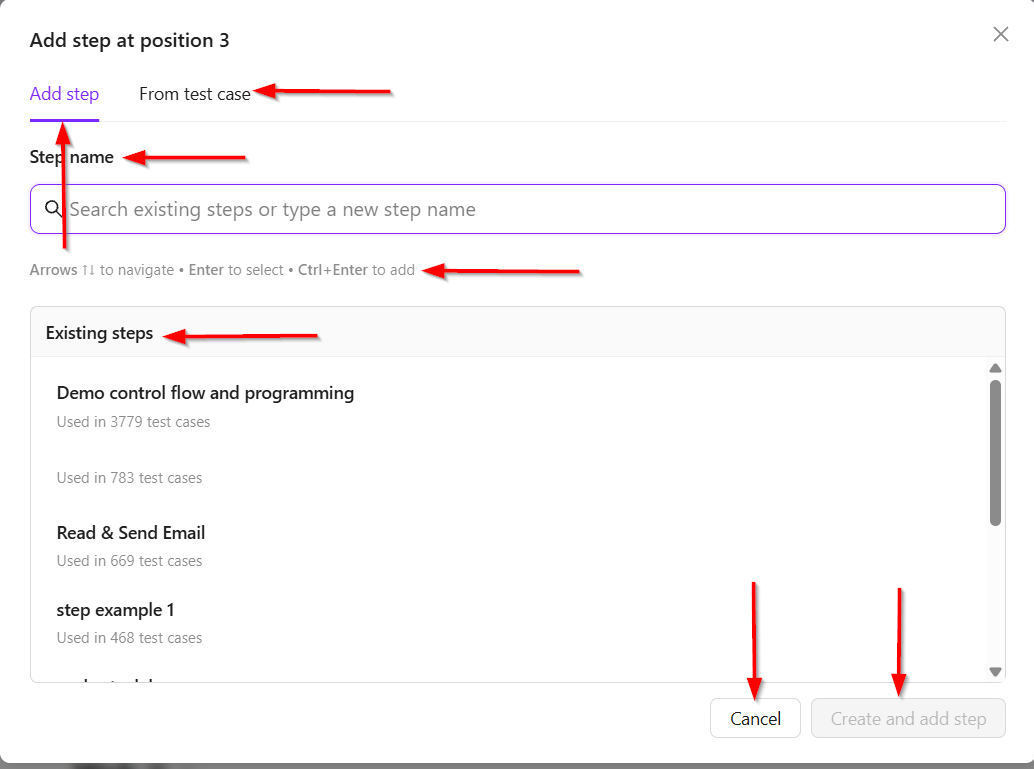
- After clicking the + Add Step button, a form named "Add Step at Position (No.)" will appear and it will appear two type of tabs, such ase, "Add Step":
It contains the following elements: - Add Step: Allows users to create a new step by entering a step name or selecting an existing step. It also contains the following elements:
- Search Bar: Test steps can also be searched using the Search bar, if available.
- From Test Case: Provides an option to add a step from another test case.
- Step Name: Allows users to search for an existing step or enter a new step name.
- Existing Steps: Displays a list of existing steps that can be selected. Each step also shows how many test cases currently use it.
- Keyboard Shortcuts: The displayed instructions allow users to navigate the list using the arrow keys, press Enter to select a step, or use Ctrl + Enter to add a new step.
- Cancel: Closes the window without adding a step.
- Create and Add Step: Creates the entered step and adds it to position. This button remains disabled until the required step information is provided.
Action Library
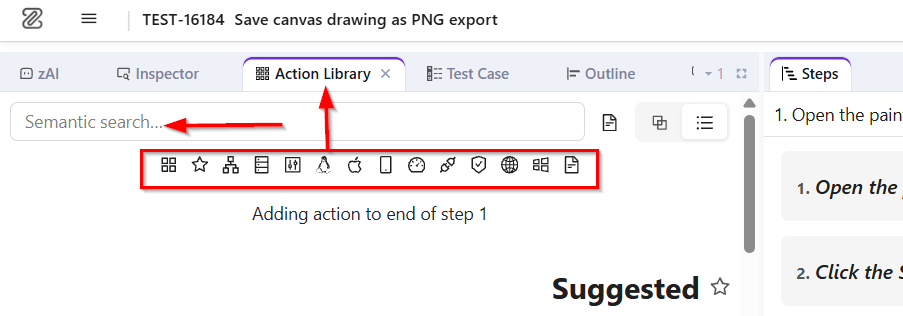
- After adding the steps, the page will redirect to the "Action Library".
- Additional panels can also be added from the Layout Settings.
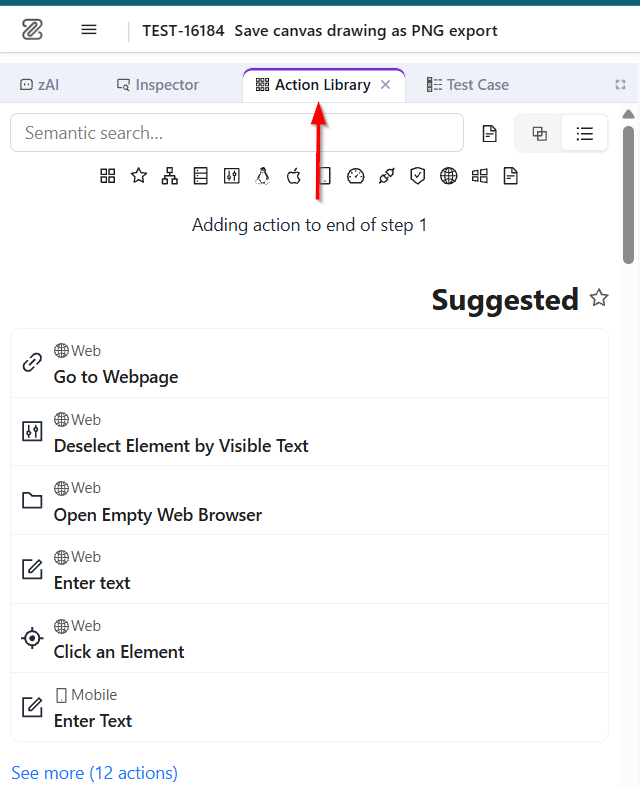
- Actions can be filtered by platform.
- Users can search for specific actions using the Search option.
-
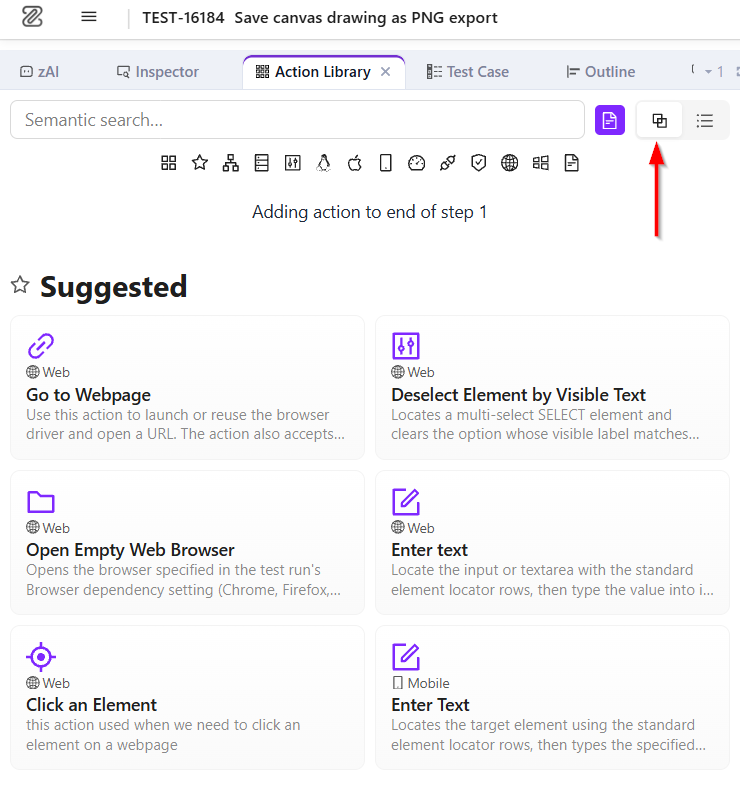
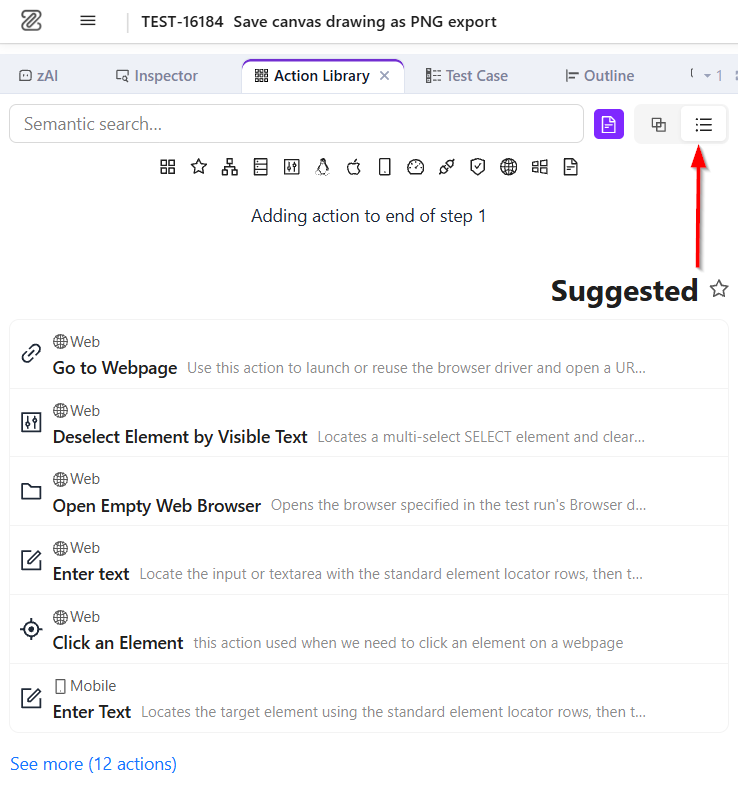
Actions can be displayed in two views:
- Card View:
List View:
-
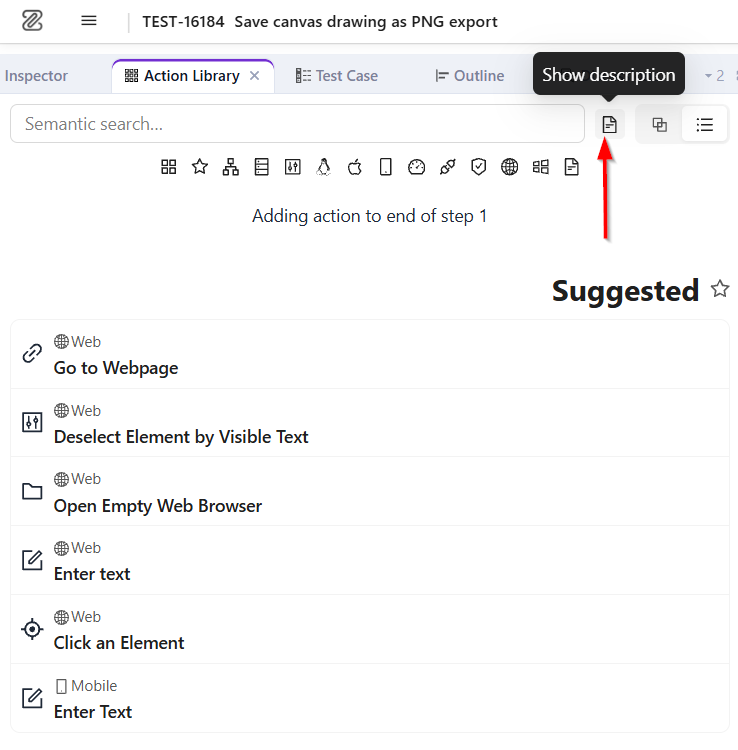
A Hide Description option is also available next to the search bar.
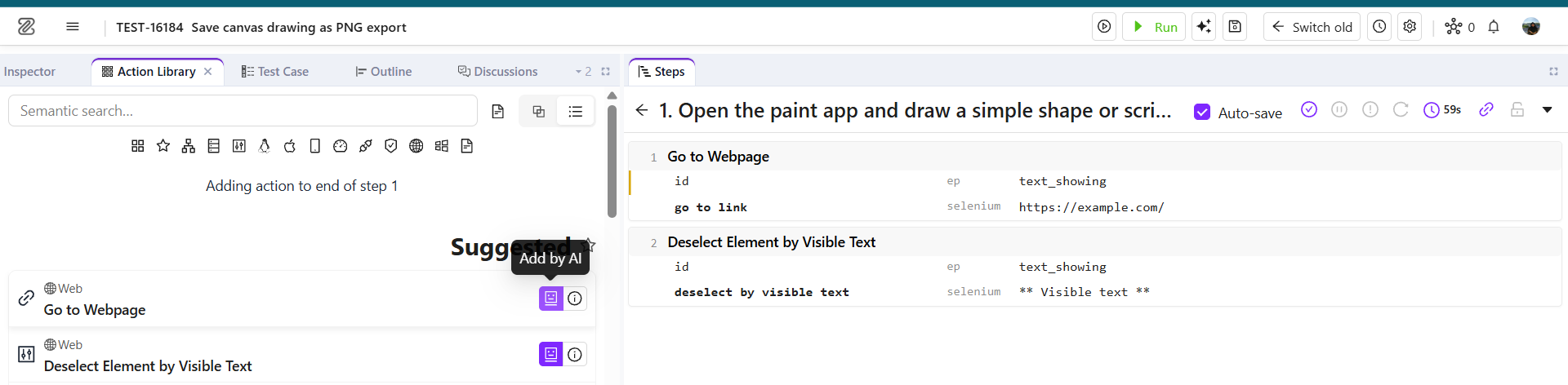
- Users can add actions by clicking Add by AI .
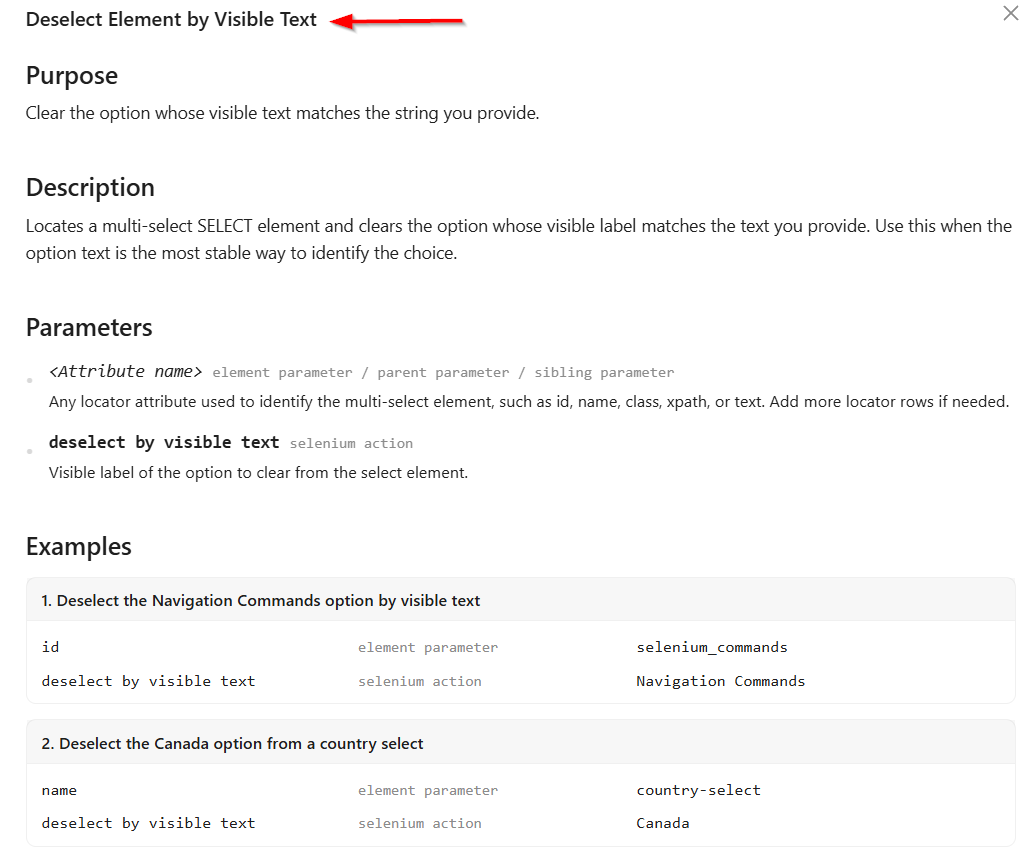
- The description of actions can be viewed directly by clicking Show description button.
Outline Section
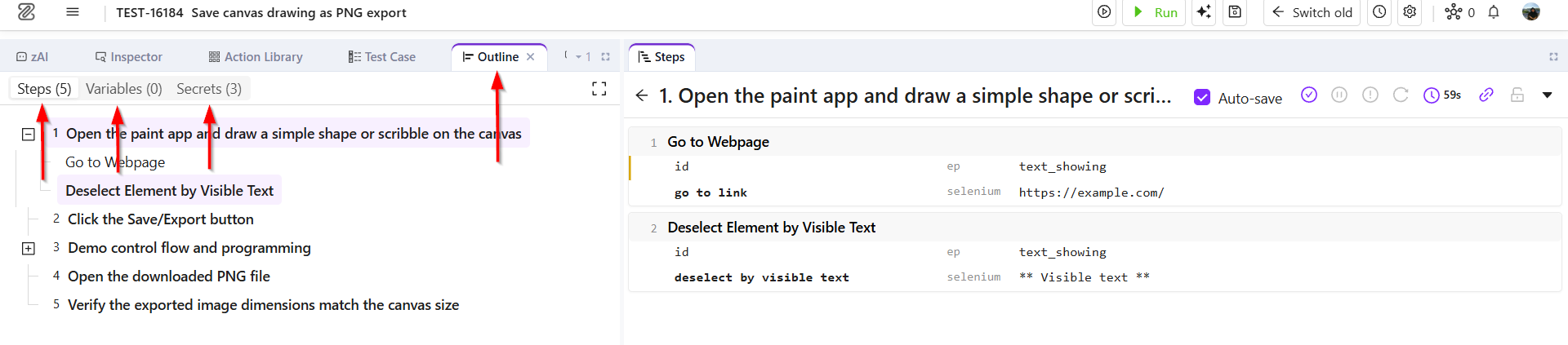
- A test case can contain multiple actions, and the Outline section provides a short overview of the entire test case. It displays key information such as Steps, Variables, and Secret Values.
- The Test Case section also allows users to edit test case details. Users can update properties such as the Folder, Feature, Labels, Description, Priority, Status etc.
Add a Version
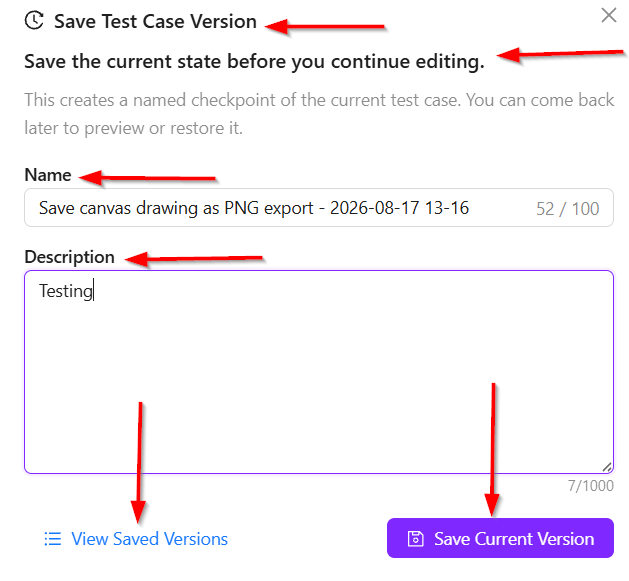
- It allows users to save and manage different versions of a test case and it redirects to the "Save Test Case Version" window allows users to save the current state of a test case as a named version or checkpoint. It contains the following elements:
- Name: Allows users to enter a name for the version. A character counter shows the number of characters used out of the 100-character limit.
- Description: Allows users to add additional information about the saved version. The field supports up to 1,000 characters.
- View Saved Versions: Opens the list of previously saved test case versions.
- Save Current Version: Saves the current state of the test case as a new version.
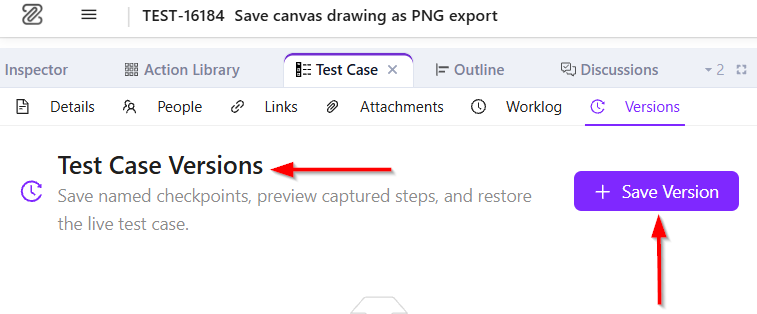
If you need more detailed information about version, please follow the link below:
https://docs.zeuz.ai/docs/zeuz-server/Project/Planning/version/
- Each test case can have multiple saved actions, and each version is stored as a snapshot of the complete test case at a specific point in time. When a version is saved, the current state and data of the entire test case are preserved.
- Users can later preview, restore, or delete a saved version. For example, if a step is deleted from a test case after a version has been saved, the current test case will no longer contain that step. However, restoring the previously saved version will return the test case to the state it had when that version was created, including the deleted step.
Reviewer, Follower and Links option
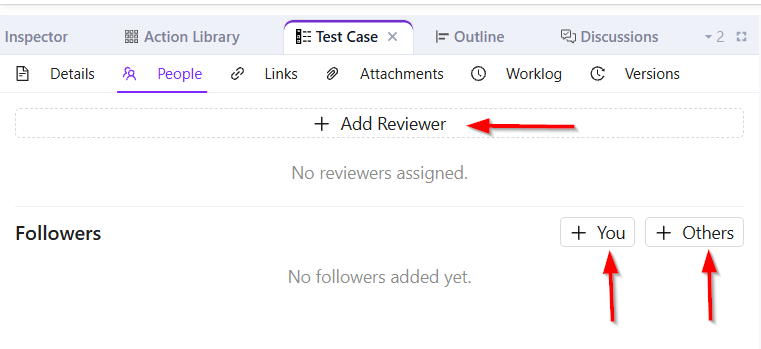
- The Reviewer and Follower options are available under the Test Case section. A reviewer can be added to review the test case, while a follower can be added to monitor the progress of the test case.
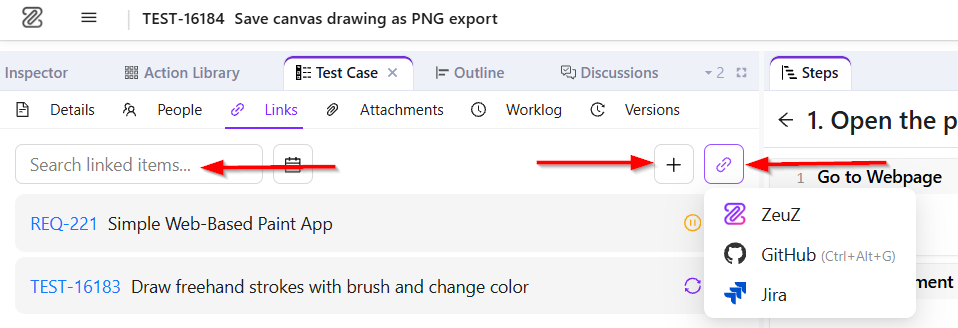
- The Links option allows users to link related ticket items to the test case. For example, a task can be linked to a test case to track the time spent on completing it. A test case may also be linked to a related Bug or other work item. Users can add links to different platforms, such as ZeuZ, Jira, or GitHub, as required.
Attachments
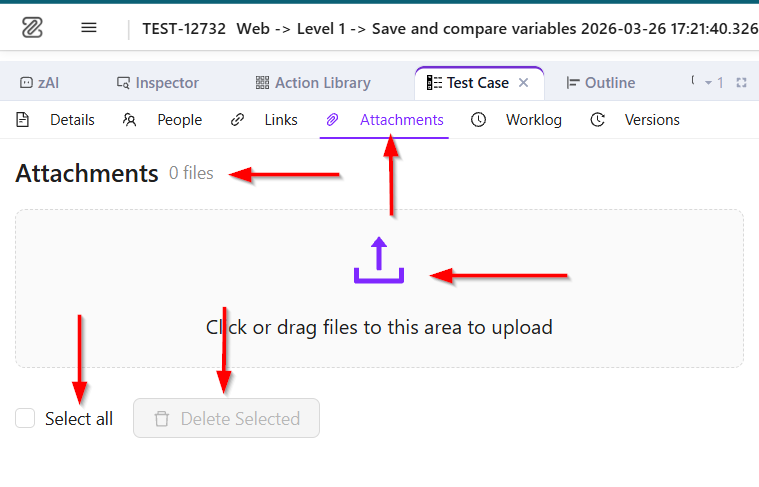
- It allows users to upload and manage files associated with a test case. It contains the following elements:
- Attachments: Displays the number of files currently attached to the test case.
- Upload Area: Users can click or drag and drop files into the designated area to upload attachments.
- Select All: Allows users to select all uploaded files at once.
- Delete Selected: Allows users to delete the selected attachments.
- Attachments Tab: The highlighted Attachments tab indicates that the attachment section is currently active.
If you need more detailed information about attachments, please follow the link below:
https://docs.zeuz.ai/docs/zeuz-server/testing/Test%20Case/create-global-attachments/
Worklog
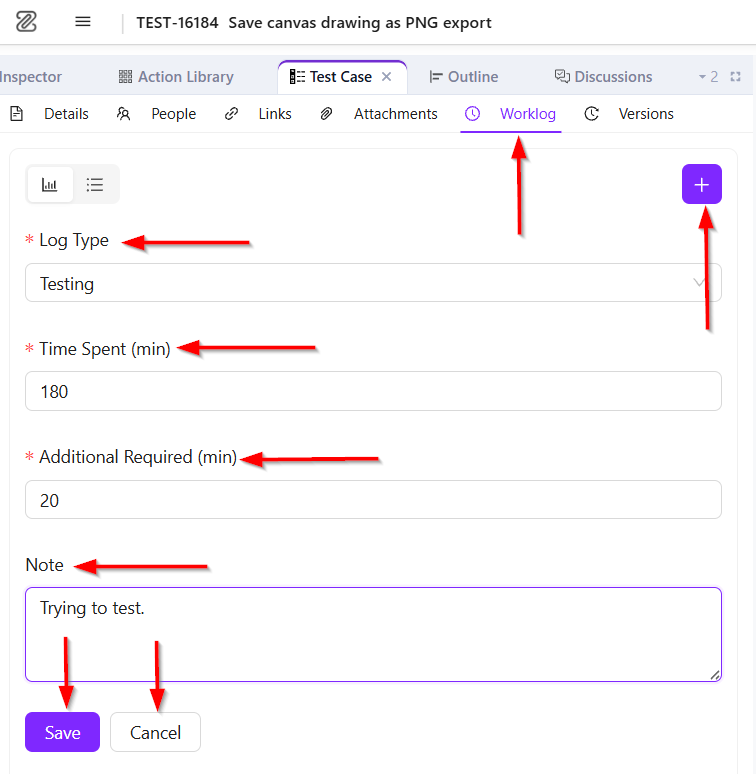
- It allows users to record and manage the time spent on a test case. It contains the following elements:
- Worklog View Options: Provides options to switch between different worklog views.
- Add Worklog (+): Allows users to add a new worklog entry.
- Log Type: A required field used to select the type of work performed.
- Time Spent (Min): A required field for entering the amount of time spent on the work, in minutes.
- Additional Required (Min): A required field for entering any additional time required, in minutes.
- Note: Allows users to add additional information or comments about the worklog.
- Save: Saves the worklog entry.
- Cancel: Cancels the entry without saving it.
Discussion
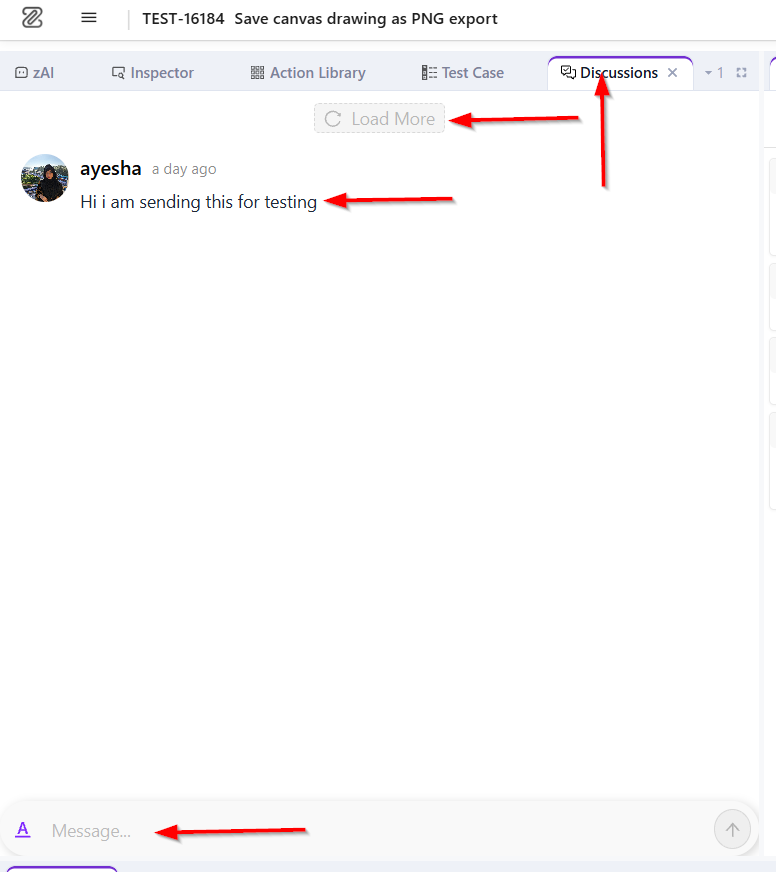
- It allows users to view and participate in discussions related to the test case. It contains the following elements:
- Discussions Tab: Displays discussions associated with the current test case.
- Load More: Allows users to load additional discussion entries when more discussions are available.
- User Information: Displays the name and profile image of the user who posted the discussion, along with the time it was posted.
- Discussion Message: Displays the content of the discussion.
- Discussion Reply: It allows users to respond to an existing discussion and continue the conversation within the same discussion thread.
- Edit: It allows users to modify an existing discussion or comment associated with the test case.
- Share: It allows users to share an existing discussion or comment with other users for collaboration and reference.
- Delete Message: It allows users to remove an existing discussion or comment from the test case.
- Mention: It allows users to tag another user in a discussion or comment by using their name or username.
Inspector
- We have three inspectors, as follows:
- Android
- iOS:
- Linux Inspector: https://docs.zeuz.ai/docs/zeuz-server/testing/Intelligence/linux-inspector/
Debug
If you need more detailed information about debug, please follow the link below:
https://docs.zeuz.ai/docs/zeuz-server/testing/Test%20Case/debug-test-cases/
Logs
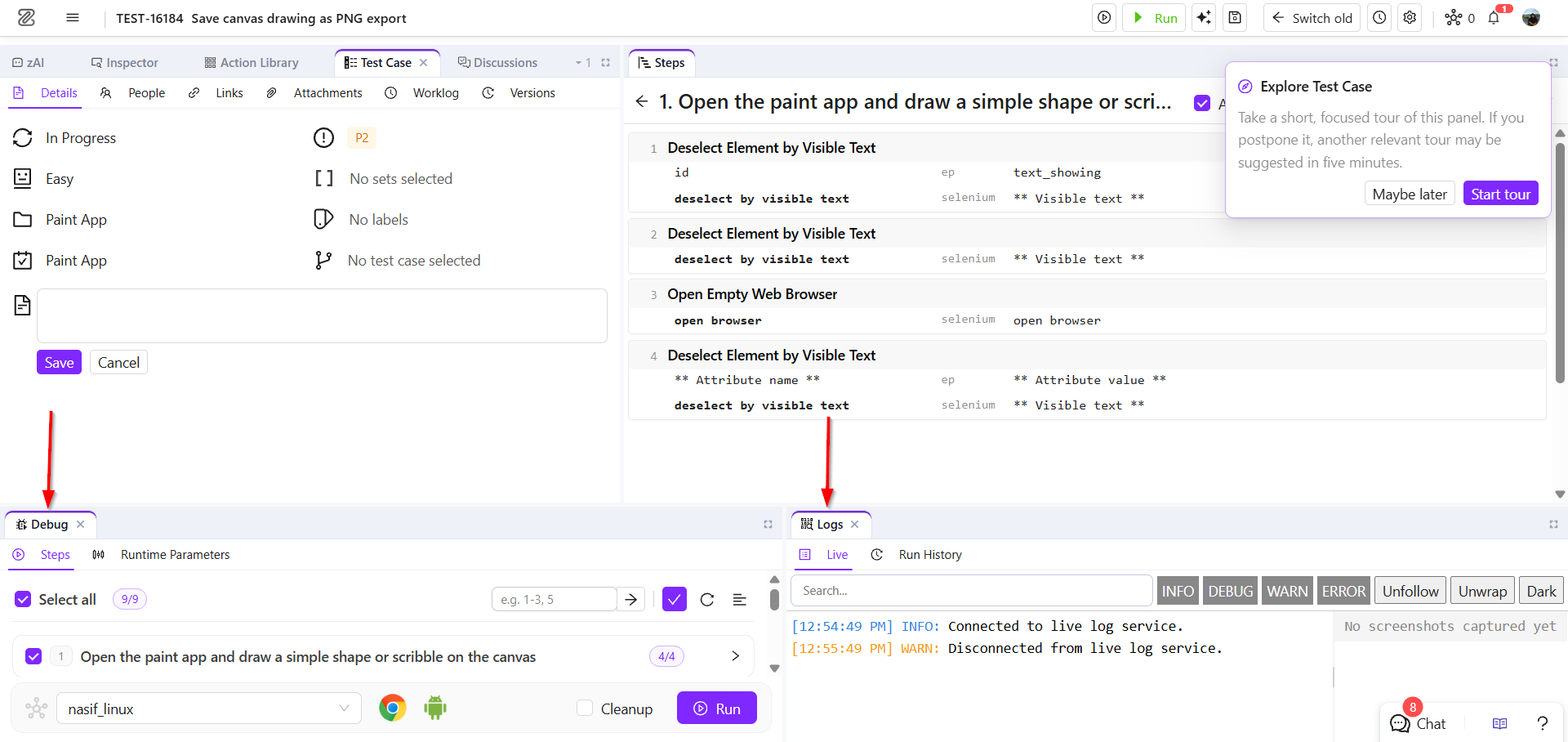
- The Logs section provides several options for monitoring and reviewing test execution. Users can view live logs and screen captures during execution. Logs can also be filtered by type, such as Info, Debug, Warn, and Error, allowing users to focus on specific types of messages.
- The section also provides Follow/Unfollow options to control whether the view automatically follows the latest log entries. The Wrap/Unwrap option controls how long log messages are displayed. Users can also switch between Dark Mode and Light Mode for the log viewer.
FAQs / Troubleshooting
FAQs
Can steps be added while editing a test case?
Yes. New steps can be added at a specific position using the + Add Step option.
Can test case properties be changed while editing?
Yes. Properties such as Folder, Feature, Labels, Status, Automatability, and Priority can be updated from the Test Case section.
Can a test case be restored after making unwanted changes?
Yes. If a previous version was saved, the test case can be restored from the Test Case Versions section.
Can users add reviewers and followers to a test case?
Yes. Reviewers can be added to review the test case, while followers can be added to monitor its progress.
Can related tasks or bugs be linked to a test case?
Yes. The Links option allows related items such as tasks, bugs, and external links to be associated with the test case.
Troubleshooting
- A saved version does not contain recent changes. Why?: A version represents the test case state at the time it was saved. Changes made afterward are not included in that previously saved version.
- An accidentally deleted step needs to be recovered. What should be done?: Restore a previously saved test case version that contains the deleted step.
- Restore a previously saved test case version that contains the deleted step.: Select the required step first. The Add Action option should then become available for adding actions.
- Changes are not being saved automatically. What should be checked?: Check whether Auto-Save is enabled in the test case editor. If it is disabled, changes may need to be saved manually.
Changelog
- Completely revamped Test Case Edit page with a customizable, drag-and-drop workspace powered by flexlayout-react [202604]